Before you start
Webvizio was built for teamwork, collaboration on web design projects, and web project management, so it was designed to fit a variety of different use cases: website owners, web design agencies, clients, project and/or product managers, QA & dev teams, or independent service providers.
Those use cases will naturally differ by their roles and responsibilities, so there are a number of different roles and user categories in which you and your teammates can use Webvizio. Let’s break it down.
User roles
1. Account Owner
An account owner is the one who signs up for the platform and creates the account. The account owner can be a particular website owner or representative or manage a few different projects in parallel.
An account owner has access to full account management, including:
- Account management (creating and deleting the account, setting other users’ permissions)
- Account payments, billing, and subscription management
- Managing projects within the account
- Managing users on both the account and project levels
- Create and manage folders
- Refresh projects to the latest version (via the Refresh project button)
- Approving or rejecting requests to add new users to the account
- Advanced task management (e.g, deleting or changing any task, including other users’ tasks)
- Overseeing project dashboards, productivity reports, and activity logs.
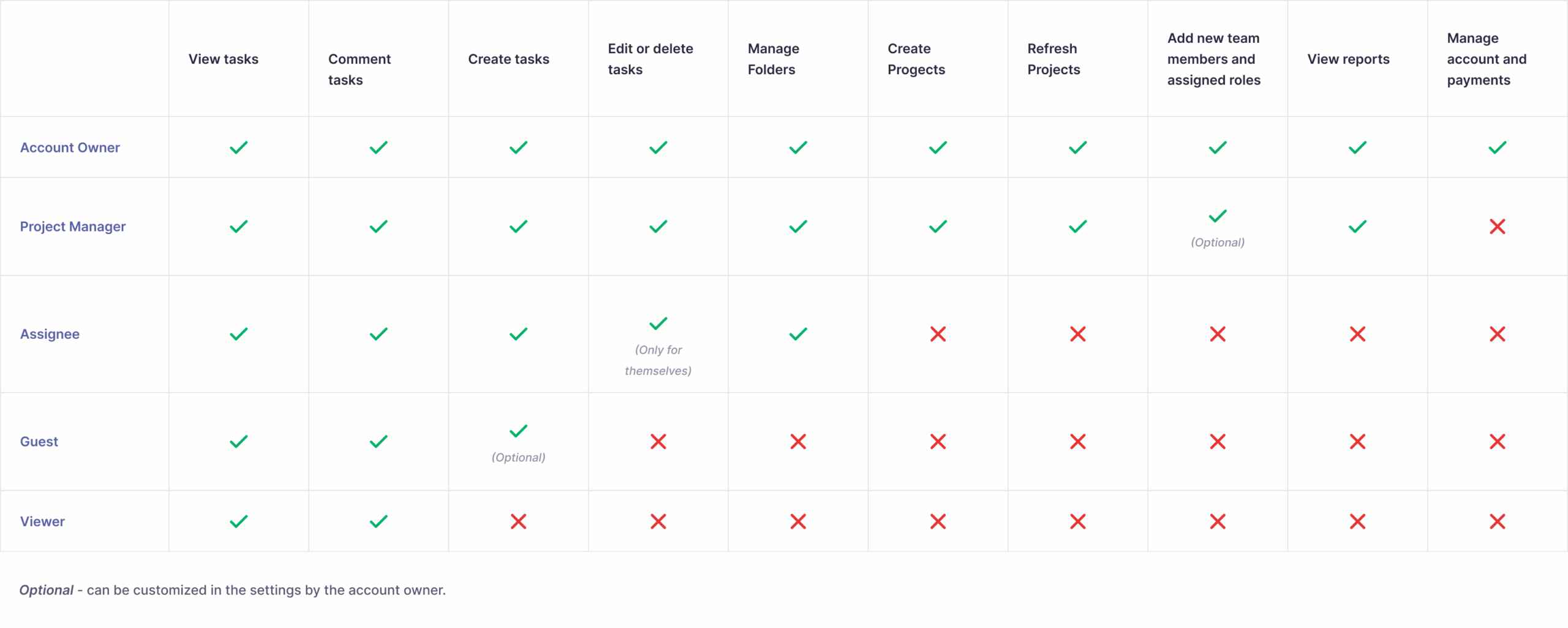
For more detailed information, please refer to this chart comparing user roles.
2. Project Manager
A project manager is a person responsible for specific projects and is responsible for overseeing and tracking the project’s progress and team performance.
For example, a project manager can:
- Create and manage projects
- Create and manage folders
- Refresh projects to the latest version (via the Refresh project button)
- Invite and manage all users (with appropriate settings – with/without permission from the Account owner)
- Assign/reassign roles (with appropriate settings – with/without permission from the Account owner)
- Share / add/remove users at the project level
- Advanced task management (e.g, deleting or changing any task, including other users’ tasks)
- See project dashboards, productivity reports, and activity logs.
The account owner can determine whether users in the project management role can independently invite and manage other users without the account owner’s approval in the User & Permission settings by clicking on the checkbox “Allow project managers to invite and manage users.”

If this option is not active, the account owner must manually confirm each user with the assignee role and higher by clicking the Approve button in the User Management Settings.
For more detailed information about the Project Manager role, please refer to this chart.
3. Assignee
An assignee is a project executor who is usually getting invited to a project (and platform) and assigned with some tasks to perform.
Assignee access allows them to:
- Create/ edit their own tasks
- Delete tasks created themselves
- Indicate task status, priority, and deadlines
- Comment and attach files to others’ tasks
- Manage folders.
If the account exceeds the seat limit, all invited users will be added as Viewers. You can modify this setting in the Account Settings or adjust user roles at any time.
For more detailed information about the Assignee role, please refer to the chart below.
4. Client
Webvizio’s Client user role is designed to help you collaborate effectively with external stakeholders (clients) while maintaining control over your internal team’s privacy and workflows.
The Client role access allows users to:
- Create/edit their own tasks
- Delete tasks they created themselves
- Upload files or video recordings to their tasks
- Preview tasks and comments created by others (optional)
- Comment on their others’ tasks (optional)
- Assign tasks to others (optional)
- Indicate task status, priority, and deadlines (optional)
- Manage tags (optional)
Key Permissions
The Client Role offers flexible permissions. You can set the following permissions for the Client Role at the Account Level:
| Setting | Description |
| Allow viewing others’ tasks | Hide or reveal tasks and comments created by other users from the Client’s view. |
| Allow viewing others’ comments | Allow or disallow users in the Client role to view and respond to comments made by others. |
| Allow task assignment | Allow or disallow users in Guest and Client roles to assign tasks to other users. |
| Allow managing tags | Limit the ability of Clients to create, edit, or delete project tags. |
| Default Role | Set “Client” as the automatic role for new users invited to projects. |
How to Configure the Client Role & Defaults
- Navigate to your Account Settings.
- Select the User and Permissions tab.
- Click on Guest & Client permissions.
- Save changes to apply settings account-wide.
- Adjust the checkboxes for task and tag management.
🚩
Pro Tip: Why use the Default Role?
Setting a default role prevents “permission leaks,” ensuring that no external stakeholder is accidentally given internal-level access when they first join a project.
5. Guest
A Guest is an unregistered user who isn’t involved in the project’s daily operations and is only invited for a one-time contribution, to view specific projects and share feedback with the team.
Unregistered users have similar permissions to the Client role, including adding their own tasks and commenting on others’ tasks (optional), uploading files, or sharing video recordings (uploading files/videos is available to Advanced plan accounts only).
The main difference is that a user in the Guest role, as an unregistered user, cannot change the task or comments after their creation, because they have temporary access to the platform.
The Guest role also has flexible permissions. You can set the following permissions at the Account level:
| Setting | Description |
| Allow guests to create tasks | Allow or disallow users in the Guest role to create their own tasks. |
| Allow viewing others’ tasks | Hide or reveal tasks and comments created by other users from the Guest’s view. |
| Allow viewing others’ comments | Allow or disallow users in the Guest role to view and respond to comments made by others. |
| Allow task assignment | Allow or disallow users in Guest and Client roles to assign tasks to other users. |
| Allow managing tags | Limit the ability of Clients to create, edit, or delete project tags. |
For Starter, Advanced, and Enterprise plans, your guests can create tasks and comment on existing tasks if the account owner enables guest contributions:
- Starter plan: Guests can create basic tasks with titles and descriptions.
- Advanced and Enterprise plans: Guests have access to extended collaboration features, including full task creation capabilities and enhanced project interaction.
How to Configure the Guests Role permissions:
- Navigate to your Account Settings.
- Select the User and Permissions tab.
- Click on Guest & Client permissions.
- Adjust the checkboxes for task and tag management.
- Save changes to apply settings account-wide.
Guest Role Default Settings
Any unregistered user accessing a project via a link sees it in Guest view by default.
After the registration, these users became registered users and must be assigned one of the default roles: Assignee, Client, or Viewer. A “Viewer” role will be assigned automatically if all seats within your plan are occupied.
You can change the default role setting in the User & Permission tab ->Default user roles.
🚩
Pro Tip: Making the Most of the Guest Role
Guest seats do not count against your plan’s seat quota, making them a flexible option for temporary collaborators. However, there are some limitations: since guests are unregistered users with temporary access, they cannot edit tasks or comments after they are created.
If you regularly collaborate with someone and need them to edit their tasks or comments, we recommend assigning them a different role.
Guest Identification
For guests on Starter, Advanced, and Enterprise plans, there is also an option to bypass authorization pop-ups. You can change this at any time in the Account settings.
Each guest will automatically be assigned a unique name, which they can change at any time. To update the displayed name, guests should click on the user icon in the top right corner, enter their desired name, and confirm the changes by clicking the ✔️ icon.
More detailed information about the Guest role can be found here.
5. Viewer
A Viewer is someone who’s not actively involved in the project execution but has access to an overview of the project’s progress.
The Viewer’s permissions are limited to viewing tasks and commenting on others’ tasks only.
Users in the Viewer role do not count against your plan’s user quota on Starter, Advanced, or Enterprise plans, so you can invite as many viewers as you like. The Viewer role is not available for the Solo plan.
User Roles Сomparison Сhart